JLMahJongg enables multiple people to play over the internet. There are 2 network options, direct internet connection and relaying using an external server. There are two other settings Off and Auto. “Off” does not need the network and “Auto” automatically selects between “Direct” and “Relay.” Multiple options are supported because no single option has all the best features or would be available to everyone. Also, the options vary in availability, speed, and stability both between different internet servers and on a particular server. The Relay option speed depends on server responsiveness. A high data rate is not required, but if the server responds slowly, the game will be slow. The direct connect option speed only depends on the connecting device’s internet speeds. Direct connect means the player’s devices communicate directly without a 3rd-party server relaying the messages. This is called Peer-to-Peer (P2P). The external server relay option relays messages between players through an external “third-party” server.
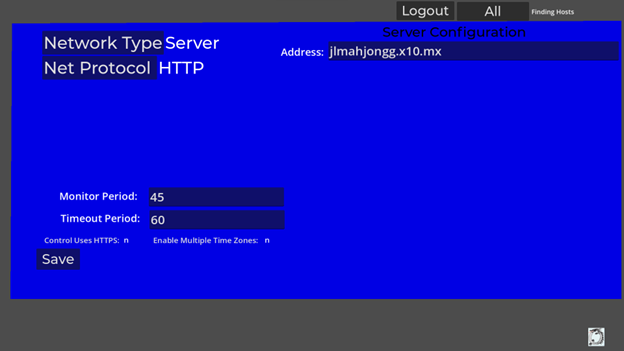
External Servers: The JLMahJongg.com server is the default for our app. To select a different server, set the Network Type to “Server,” and Net Protocol to “HTTP,” then enter the server internet address (without the http://) in the address field.
If you change the network type, you may need to restart the app.
An example network configuration display is shown in Figure D1. The network control inputs are:
- Network Type – This can be Off, Direct(D), Relay(R), or Auto.
- Monitor and Timeout Periods – Relay mod only. The Monitor and Timeout inputs set the period (seconds) between heartbeat messages and the period (seconds) before a device times out. When a host device times out, the other players become single player games. If a client device times out, it is replaced by a computer player.
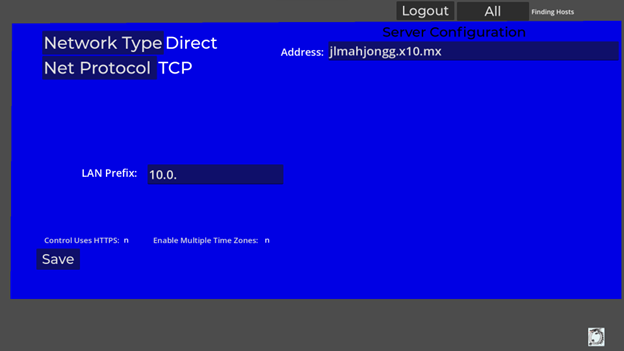
- LAN Prefix – Direct mode only, the first two or more digits of any LAN IP addresses (for example: 10.0. if the LAN IP addresses are 10.0.0.XXX). This is only needed for direct connections and only if multiple players are playing on a LAN and are not using IPv6 addresses.
- Use HTTPS – If set, changes messages to/from the server from HTTP to HTTPS. (Should not be necessary)
- Enable Multiple Time Zones – Set this to ‘y’ only if you are playing another real player in a different time zone. This prevents automatically logging out the other player due to a time difference larger than the “Auto Logout” time period.
External Relay Server (R)
This option relays messages between players using Hypertext Transfer Protocol, HTTP(S). HTTPS is a secure version (encrypted), but it should not be necessary for any game messages to be encrypted. This is included in case the server requires HTTPS instead of HTTP. Small text messages are sent between players through the server for multiplayer operation.
The HTTP option is likely to be fast enough for beginner players or those just getting familiar with the JLMahJongg app. The HTTP server option can use public web servers that run internet web sites. HTTP is likely to be available and can connect with anyone with an internet connection. If the HTTP protocol is not fast enough, Direct can be used, if available.
Direct Connection (D)
Last, but not least, the direct option connects the players devices directly using the internet. A direct connection is useful when the devices connecting are on the same side of the router firewall, i.e. on a local area network (LAN). This is a great option for playing within a household over Wi-Fi.
This is typical for multiple devices connecting through Wi-Fi within a house. We use the direct connection when we play together at home.
Each client player exchanges messages only with the host. The host device acts as a server and controls communication between all players. The direct configuration setup is shown in Figure D3. The devices’ internet addresses are determined automatically by JLMahJongg. It may take longer to establish the direct connection due to the communication sequence required; however, the game is fast after the connections are made.
Off (None or Offline)
This network option lets you play against 3 computer players, even if there is no internet connection available. Your scores are not recorded on the public scoreboard if the server is not available. JLMahJongg automatically switches network type to “Off” if it cannot connect to the JLMahJongg server.
JLMahJongg Multiplayer Game Administration
An internet server is made a JLMahJongg server by uploading several small PHP scripts. These scripts handle all game communication. The server needs to be available via HTTP(S).
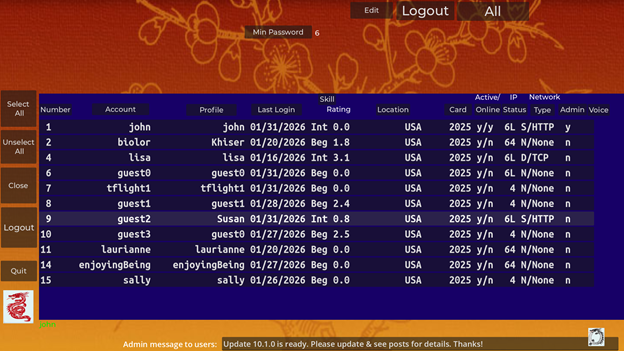
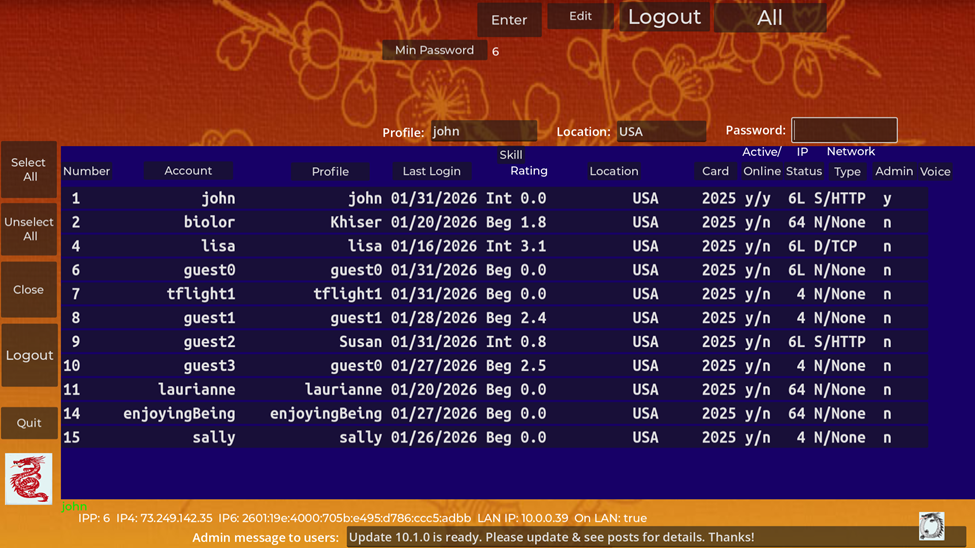
JLMahJongg game administration uses a version of the Player Sets and Data display. A non-administration version of this display is used to log in or out of the game. Administrators control who has game access and user’s initial account information. Administrators should password-protect their accounts.
An example administration display is shown in Figure D5. The blue area shows data for all current accounts. You can sort on a column by clicking on the column heading. The columns are:
- Number: A unique ID number assigned to each user. Numbers 0 and 1 are always administrators.
- Account: Account being used or last used. Case matters except for the first character.
- Profile: User profile name (last or current user if for a Guest account)
- Last Login: Last date of app login
- Skill Level and Rating: Skill level to help match players with similar skill and speed. Skill rating is user’s skill (quantified from 0 to 10) estimated from play history.
- Location: Geographical location
- Cards: Card name that is currently used
- Active/Online: Indication if the user is active (played recently) and currently online
- IP Status: User’s internet address types available (6=IPv6, 4=IPv4, L=On Same Local Area Network (LAN), off=not currently accessible)
- Network Name: Name assigned to a Server or Private Direct Internet connection
- Network Type/Protocol: User’s last network type and protocol
- Admin: Is the user an admin?
- Voice: Voice status: upload availability (R-Restricted, P-Public) and currently downloaded (S-Specific, C-Custom). Restricted upload availability means a user’s uploaded voice can only be used for their voice. Public upload availability means a user’s voice can be used for their voice or other player’s voices (real or computer). You can’t use someone’s public voice for your voice (either local or sent to other players). A downloaded voice file that is Specific means that that voice can only be used for the specific user that uploaded it (It was uploaded as Restricted). A downloaded voice file that is Custom means that voice file has public use so you can use it for other players’ voices (the user that uploaded it has it marked with Public availability).
Administration functions include:
Min Password – The minimum required number of password characters for non-admin users is set here between 0 and 6. If set to 0, no password is required. This is set from an administrator display button, Figure D5.
App Updates: The app does not automatically update itself; however, the administrator can set the latest version number on the web site so users are notified if a newer version is available. If available, the new version number is shown above the logo at the lower left of the lobby. An administrator can also post a message to all users using the bottom of the Figure D5 display. The message is displayed in the lobby when a user logs in. If necessary, the administrator can require users to update above a specific version before being allowed to play. A message can be sent to the chat window of players that go directly to a game indicating they need to upgrade.