JLMahJongg enables multiple people to play over the internet. There are 3 active network options, one direct connecting and two using an external server. There are two settings that do not use a network, None and Offline. Multiple options are supported because no single option has all the best features or would be available to everyone. The options vary in availability, speed, and stability. The speedier options tend to have lower availability. The options are described here in order of decreasing availability and increasing speed. Server option speeds depend on server responsiveness. A high data rate is not required, but if the server responds slowly, the game will be slow. The direct connect option speed only depends on the connecting device’s internet speeds. Direct connect means the player’s devices communicate directly without a 3rd-party server relaying the messages. This is called Peer-to-Peer (P2P). The external server options relay messages between players through an external “third-party” server.
External Servers: There are many free or low-cost servers available on the internet. Table D-1 compares a couple low or no-cost servers. There are many other features to compare, but those listed are the most important for using JLMahJongg. Some hosts do not allow running a game server script that is not in direct support of a web page. The web page version can also be uploaded to these servers. Most other features are only important if you are also hosting a website under the same account. A new server account can usually be created and configured to use JLMahJongg in less than 5 minutes. The jlbeachhouse.com is the default JLMahJongg server. To select a different HTTP server in JLMahJongg, set the Network Type to Server, Net Protocol to HTTP, then enter the server internet address (without the http://) in the address field. Our jlmahjongg-te7287h1dv.live-website.com/ is currently an alternate server you can use.
Some server protocols are “Secure.” This means the data is encrypted/decrypted for transmission. Secure connections should not be necessary for the purposes of the JLMahJongg app. If you want secure communication switch to the HTTPS protocol.
| Company | Free Trial? | Min. Cost/Mo. | Speed | Bandwidth Limit (GB/Mo.) | JLMahJongg Protocols Supported |
| X10Hosting | Yes | Free | varies | None | HTTP(S), FTP |
| IONOS | No | $9 | Moderate | None | HTTP(S) |
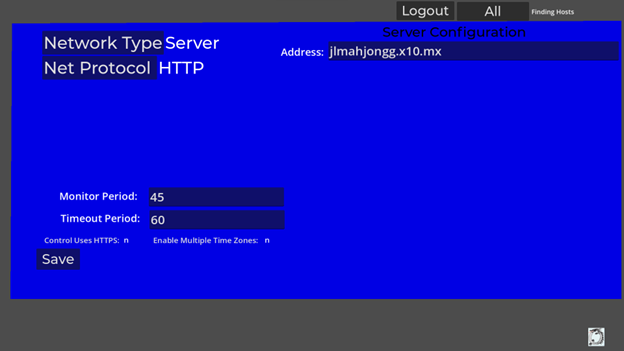
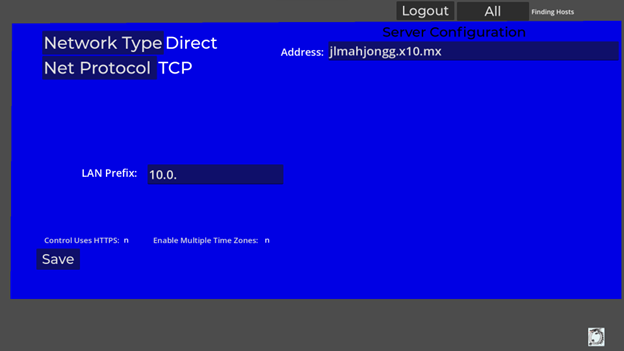
An example network configuration input is shown in Figure D1. The network control inputs are:
- Network Type – This can be None, Server(S), Direct(D), or ‘No Internet’.
- Net Protocol – The network protocol is Transmission Control Protocol (TCP) for direct connection; and Hypertext Transfer Protocol (HTTP(S))) for an external server. HTTPS is an encrypted (secure) version of HTTP, but there is no need to encrypt the game data. HTTPS may be required if the server requires it.
- Monitor and Timeout Periods – HTTP only. The Monitor and Timeout inputs set the period (seconds) between heartbeat messages and the period (seconds) before a device times out. When a host device times out, the other players become single player games. If a client device times out, it is replaced by a computer player.
- LAN Prefix – Direct only, the first two or more digits of any LAN IP addresses (for example: 10.0. if the LAN IP addresses are 10.0.0.XXX). This is only needed for direct connections and only if multiple players are playing on a LAN and are not using IPv6 addresses.
- Control uses HTTPS – If set changes messages for control to the server from HTTP to HTTPS. (Should not be necessary)
- Enable Multiple Time Zones – Set this only if you are playing another real player in a different time zone. This prevents automatically logging out the other player due to a time difference larger than the “Auto Logout” time period.
Option 1. External HTTP Server (S/HTTP or S/HTTPS)
All the multiplayer options always use the HTTP protocol for game administration. This includes player information, global game configuration, and stored scores.
If this option is selected then data is also transferred using HTTP or HTTPS during the game. The S/HTTP option relays messages between players using Hypertext Transfer Protocol (HTTP). HTTPS is a secure version (encrypted), but it should not be necessary to encrypt any game messages. Small text messages are sent between players through the server for multiplayer operation. Figure D1 shows the network configuration popup setting for an HTTP server.
The external HTTP server option can be slow, depending on server speed. See above for some other server options. Acceptable speed for you depends on your experience. The HTTP option is likely to be fast enough for beginner players or those just getting familiar with the JLMahJongg app. The HTTP server option can use any public web servers that run internet web sites. HTTP is likely to be available and can connect with anyone with an internet connection. If the HTTP protocol is not fast enough, the Direct (Option 3) protocol can be used, if available.
Option 2. External Private FTP Server (S/FTP) for Voice Transfer
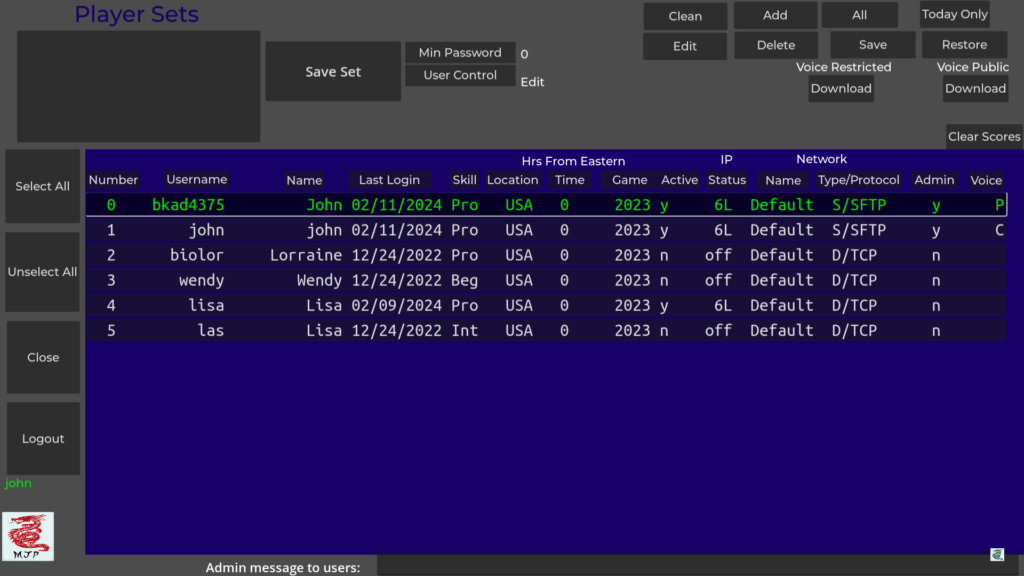
The File Transfer Protocol (FTP) network option is faster and better for exchanging custom voice files. It is not used for playing a game over a network. This interface requires a private external server with login and password. When using this interface, voice files are automatically uploaded to the server after they are created if the voice permissions are not “None.” The voice files are downloaded from the server instead of from the host when clients are using the FTP protocol. FTP transfers are faster because the files are transferred without having to convert them to text format. Once the voice files are transferred for the players, a faster interface can then be used to play the games. Since our FTP server is private and I don’t want to give out the password, this option is not publicly available.
The current app also does not have custom voice recording enabled. This is because some antivirus apps (Norton) have a bug that asks for permission to record in a hidden window (behind the app it is preventing from running). If this happens, you must know to cntrl-alt search for the hidden window to allow the recording. Otherwise the app appears hung. Also, no one has expressed an interest in recording their own custom voices.
Before a game is played, users can start with the FTP protocol enabled and download any available voice files from the server. This is done using the player sets page shown in Figure D2.
Option 3. Direct Connection (D)
Last, but not least, the direct option connects the players devices directly using the internet. A direct connection is useful when the devices connecting are on the same side of the router firewall, i.e. on a local area network (LAN). This is a great option for playing within a household over Wi-Fi.
This is typical for multiple devices connecting through Wi-Fi within a house. We use the direct connection when we play together at home.
In general, direct connection would be the preferred option if it were not for internet firewalls. I expect most people will not know how to, or want to, safely open a game port through a firewall. Firewalls are important to prevent hackers from accessing your device and are used by most or all internet routers and operating systems.
Some devices do not allow apps to change the router configuration or may have automated configuration disabled. JLMahJongg will attempt to connect through the router’s firewall when a player is hosting on a direct network and the device/operating system allows it. By default, most router firewalls reject all incoming messages that did not originate from the router itself.
If you know how and want to manually open a port through a router firewall, use port number 1909, app name “Godot”, and protocol “TCP”.
Even if you can’t open a port through a firewall, the direct connection is useful when the devices connecting are on the same side of the router firewall, i.e. on a local area network (LAN). This is typical for multiple devices connecting through wi-fi within a house.
Each client player exchanges messages only with the host. The host device acts as a server and controls communication between all players. The direct configuration setup is shown in Figure D3. The devices’ internet addresses are determined automatically by JLMahJongg. It may take longer to establish the direct connection due to the communication sequence required; however, the game is fast after the connections are made.
The direct connection option still uses an external server for game administration. Game administration requires storing small files on the server (user data, high score data, and game access settings).
Option 4. No Internet (None)
This network options lets you play against 3 computer players, even if there is no internet connection available. Your scores are not recorded on the public scoreboard.
Option 5. Offline
This network option also lets you play against 3 computer players, even if there is no internet connection available. Your scores are not recorded on the public scoreboard. This option is similar “No Internet,” but has even less connection with the JLMahJongg server. JLMahJongg automatically switches to “Offline” if it cannot connect to the JLMahJongg server.
JLMahJongg Multiplayer Game Administration
An internet server is made a JLMahJongg server by uploading several small PHP scripts. These scripts handle all game communication. The server needs to be available via HTTP(S).
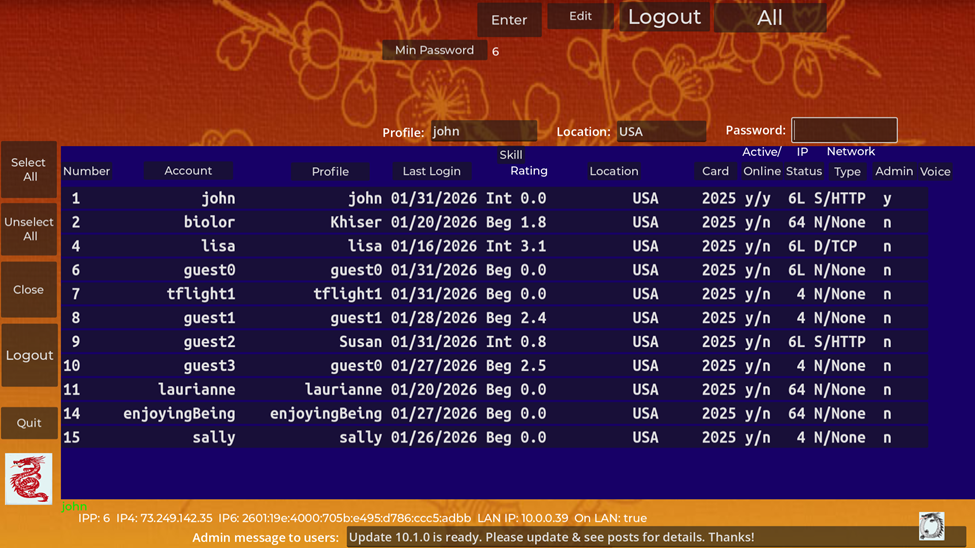
JLMahJongg game administration uses a version of the Player Sets and Data display. A non-administration version of this display is used to log in or out of the game. Administrators control who has game access and user’s initial account information. Administrators should password-protect their accounts.
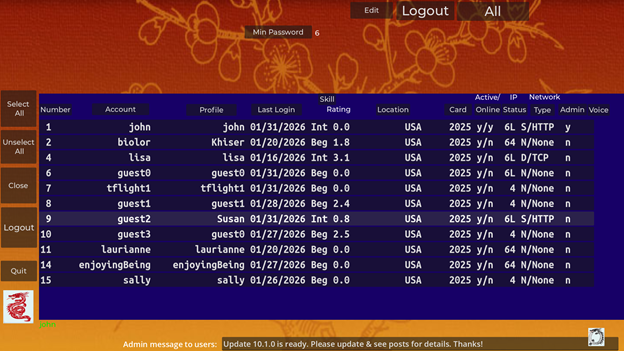
An example administration display is shown in Figure D5. The blue area shows data for all current accounts. You can sort on a column by clicking on the column heading. The columns are:
- Number: A unique ID number assigned to each user. Numbers 0 and 1 are always administrators.
- Account: Account being used or last used. Case matters except for the first character.
- Profile: User profile name (last or current user if for a Guest account)
- Last Login: Last date of app login
- Skill Level and Rating: Skill level to help match players with similar skill and speed. Skill rating is user’s skill (quantified from 0 to 10) estimated from play history.
- Location: Geographical location
- Cards: Card name that is currently used
- Active/Online: Indication if the user is active (played recently) and currently online
- IP Status: User’s internet address types available (6=IPv6, 4=IPv4, L=On Same Local Area Network (LAN), off=not currently accessible)
- Network Name: Name assigned to a Server or Private Direct Internet connection
- Network Type/Protocol: User’s last network type and protocol
- Admin: Is the user an admin?
- Voice: Voice status: upload availability (R-Restricted, P-Public) and currently downloaded (S-Specific, C-Custom). Restricted upload availability means a user’s uploaded voice can only be used for their voice. Public upload availability means a user’s voice can be used for their voice or other player’s voices (real or computer). You can’t use someone’s public voice for your voice (either local or sent to other players). A downloaded voice file that is Specific means that that voice can only be used for the specific user that uploaded it (It was uploaded as Restricted). A downloaded voice file that is Custom means that voice file has public use so you can use it for other players’ voices (the user that uploaded it has it marked with Public availability).
Administration functions include:
Min Password – The minimum required number of password characters for non-admin users is set here between 0 and 6. If set to 0, no password is required. This is set from an administrator display button, Figure D5.
App Updates: The app does not automatically update itself; however, the administrator can set the latest version number on the web site so users are notified if a newer version is available. If available, the new version number is shown above the logo at the lower left of the lobby. An administrator can also post a message to all users using the bottom of the Figure D5 display. The message is displayed in the lobby when a user logs in. If necessary, the administrator can require users to update above a specific version before being allowed to play. A message can be sent to the chat window of players that go directly to a game indicating they need to upgrade.