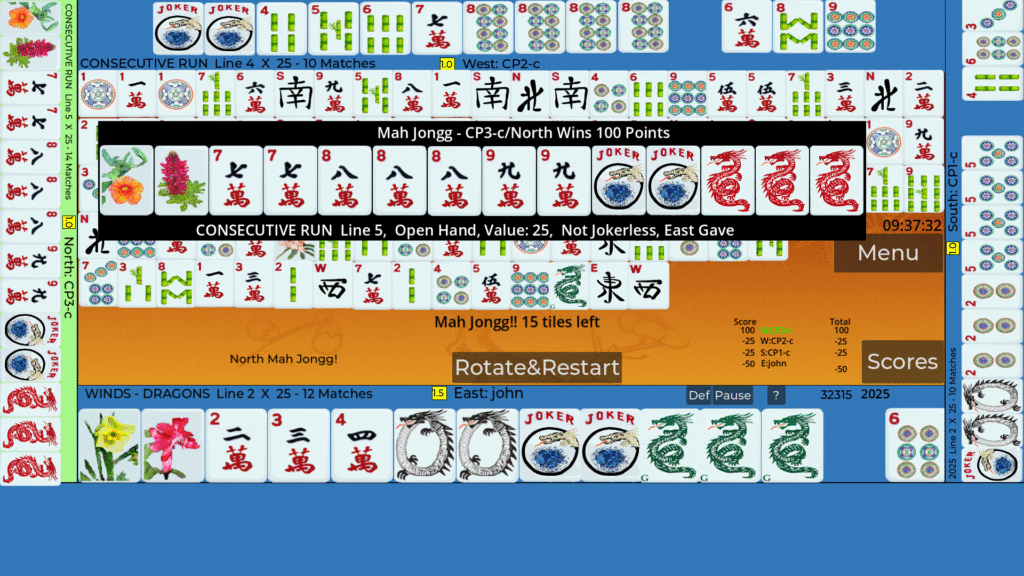
If you’re new to the game and want a quick summary of the basics without reading through this manual, here’s a summary: American Mah Jongg Basics. Note: this summary is for how to play a real game in person, not specifically for this app. Some things don’t apply to playing with an app (like how tiles get dealt and who is east).
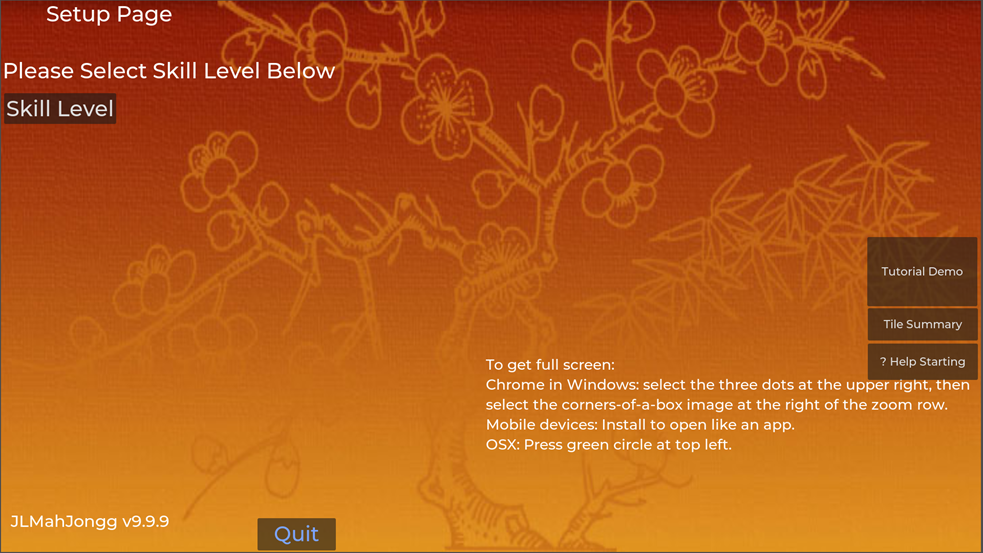
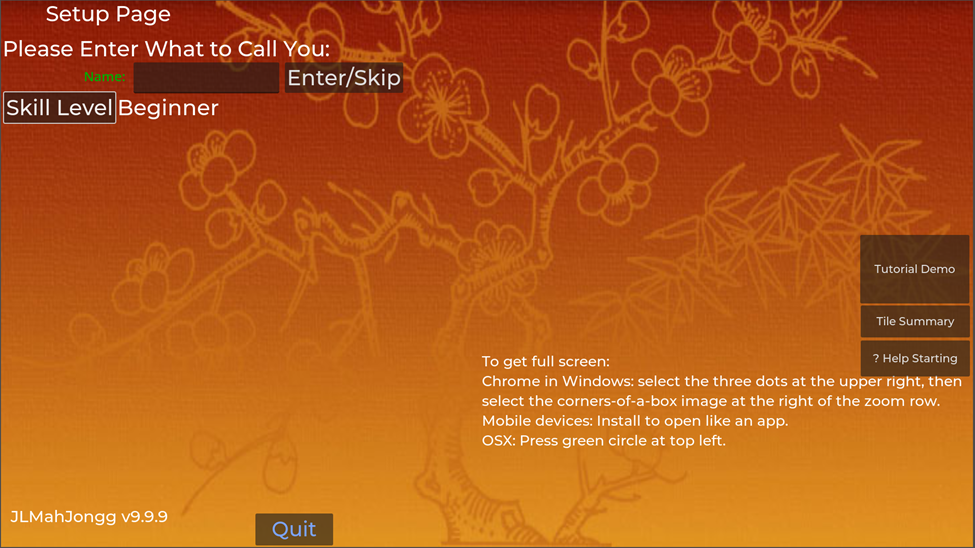
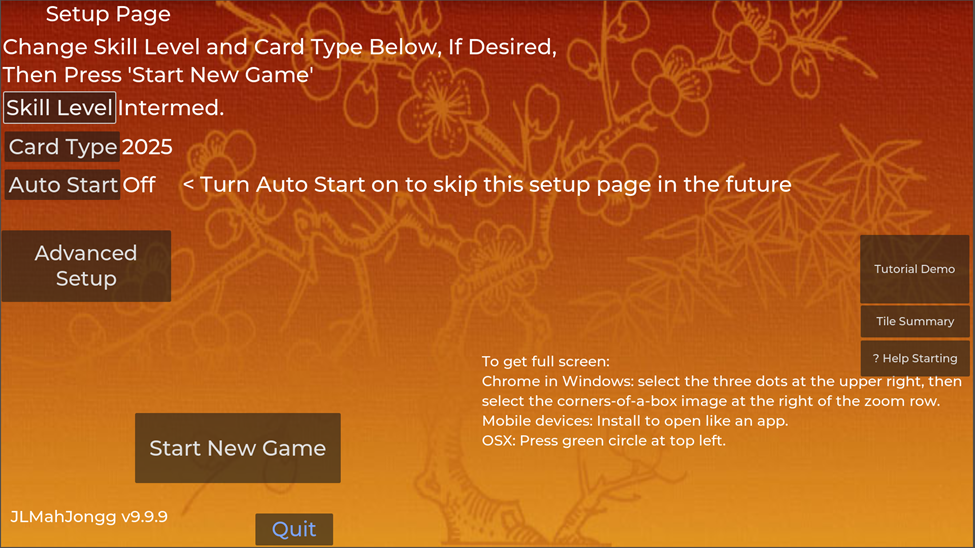
Playing Online. Select one of the online play buttons here. The first time you start, 1) Select a Skill Level using the drop-down menu (select the “Skill Level” button and then select Beginner, Intermediate, or Pro) (Figure 1), 2) Enter a name for your player (Figure 2), 3) Select a card from the Card Type drop down menu or use the default card listed. (Figure 3), 4) Press “Start New Game.”
You can also select the Tutorial Demo button to watch a game played by 4 computer players (CPs). The demo explains the game steps and what happens during the game.
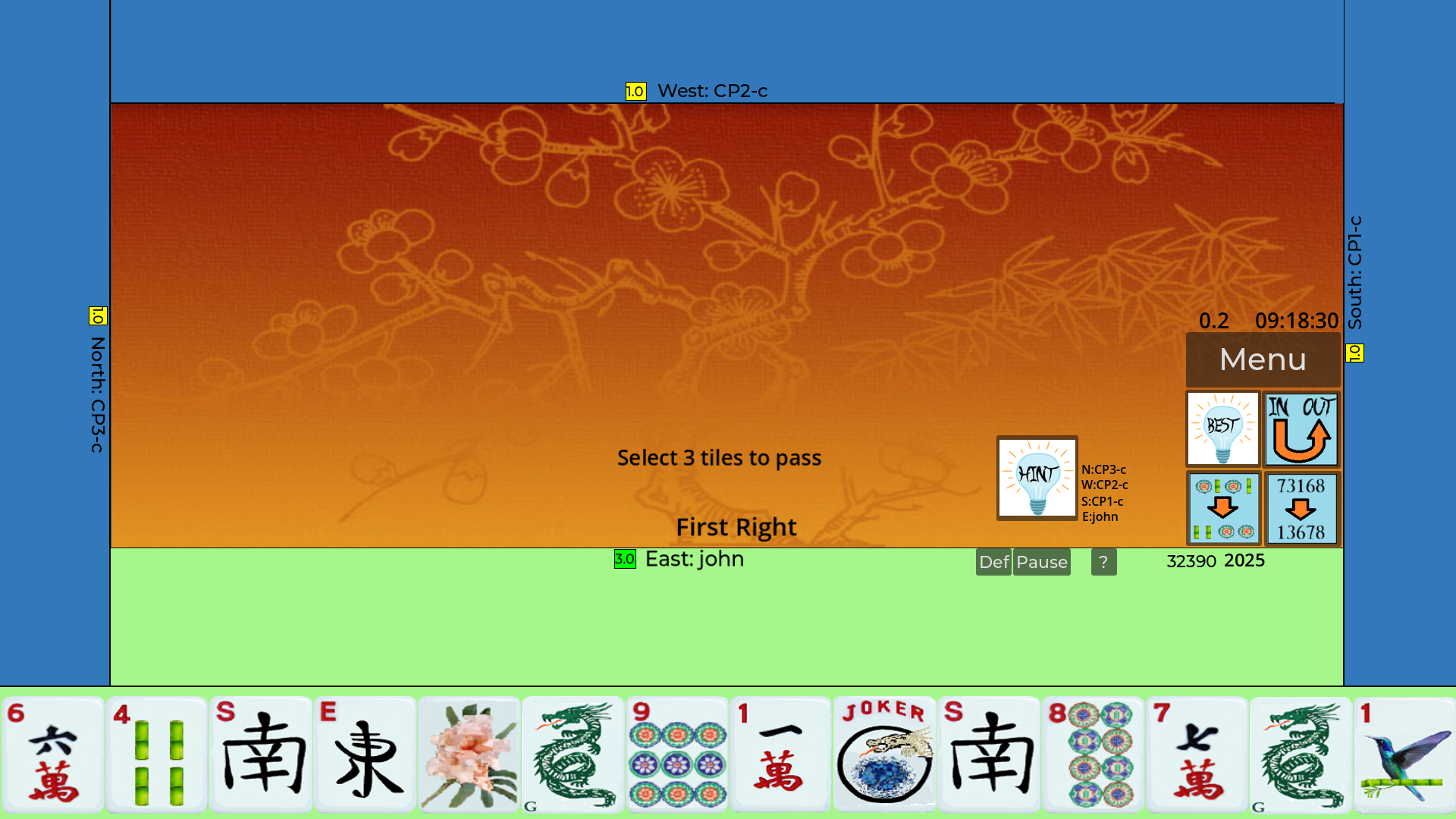
After pressing “Start New Game,” a display like that shown in Figure 4 should be displayed.
Multiplayer App Download. To get and run the JLMahJongg App for the first time:
For Apple and Android (Google) devices, download (free) from the Apple App Store or the Google Play store. You can find it by searching on “JLMahJongg.” For Windows or Linux, go to the online web JLMahJongg downloads page here. Follow the instructions for your device type.
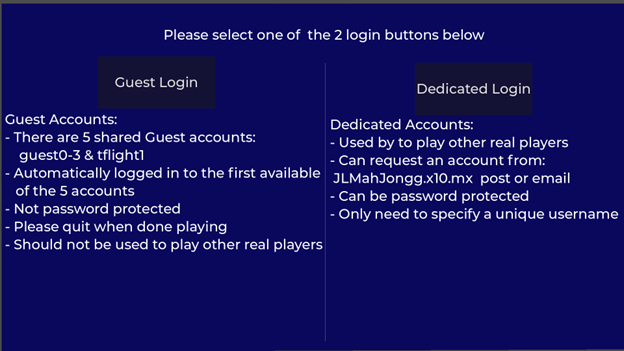
Run the app according to the instructions. The first time the app runs, after initial startup displays, two buttons will be shown for two login options: 1) Guest and 2) Dedicated (Figure 6). Select the button for the type of login you want (usually will be Guest Login).
If you want a dedicated login account, please email me or post on the website what account name you want. I will add the account and then you can log in to it and set the password yourself.
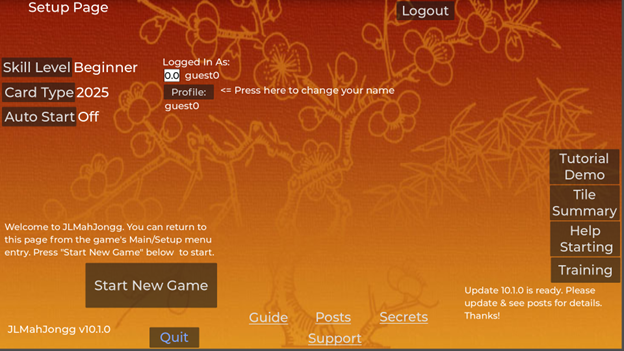
If you select “Guest Login,” you will go directly to the Setup/Lobby page. First-time users default to Beginner Skill Level (skill means with both the JLMahJongg app and playing Mah Jongg). This and the card type can be changed from the drop-down buttons. The default name used (Profile Name) will be set to the Guest account name. You can change the name to whatever you want (Max 13 characters) by pressing the “Profile” button. An Advanced Setup button can be later used to change other settings, but should not be needed for those new to the JLMahJongg app. (Advanced Setup is not shown to first time beginner users). See Setup Options here for details.
If you are running the app on a device for the first time and already have a dedicated account (Username), you can select the “Dedicated Login” button. A login display will then be shown with all the login accounts, Figure 8.
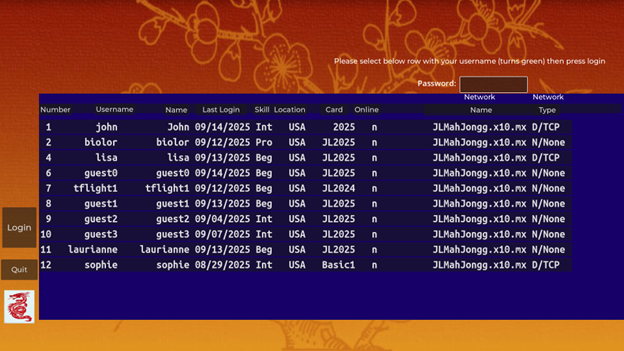
Each row in Figure 8 is a button that can be selected. When selected, the row turns green. If your account is password protected, you need to first enter the password in the “Password” box. Note: Guest Accounts are shared and cannot be password protected. Then press the “Login” button to continue to the Setup/Lobby page. An example lobby page with the network enabled is shown in Figure 9.
Note that the server name and current network settings are shown at the top left of the green Mah Jongg Lobby area. We also have an alternate server, jlmahjongg-te7287h1dv.live-website.com/ that can be used. Below that is the current status of all the user accounts.
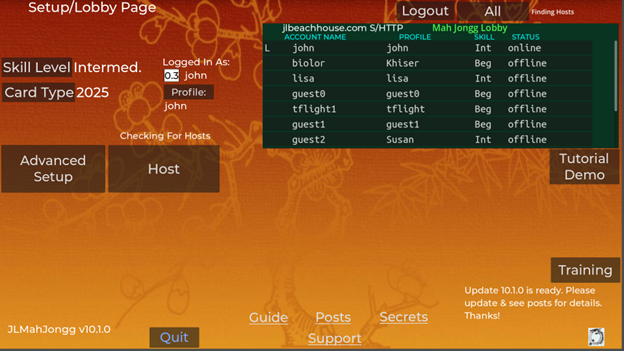
A dedicated user will either see the “Host” button or a “Start New Game” button, depending on if the network is enabled. When the network is enabled, you have the options to host a game or join some other host’s game (if one exists). The server name and the current network setting are shown at the top of the green lobby display.
Selecting a card defining winning Mah Jongg hands: Choose by selecting “Card Type” in the Options menu. The National Mah Jongg League, Inc (NMJL) sells a new card each spring (nationalmahjonggleague.org). To play using the 2025 card, select 2025 on the “Card Type” menu. Note: because the NMJL cards are copyrighted, you can’t view the card from the app unless you type it in yourself using the card editor.
Or select any other card listed. Several free cards with different difficulty levels are listed here. Basic1 is a simple card designed for beginners. Basic1 and other free cards are described here, along with how to read a simple card. Learning how to correctly read the card is often the most difficult part of learning how to play American Mah Jongg.
Options for choosing a hand after starting a game:
- Manually decide what hand to make.
- If Help Level “All” is enabled, you can use the “Hint” feature. Hint shows the best hand below your tiles (Table Type “Table 2”) or merged with your tiles (Table Type “Table 1”). Table Type “Table 1” marks needed tiles by shading them. Shade colors: White-still available, Yellow-need a joker, Red-can’t call because it’s a closed hand.
- If Help Level “Basic” or “All” is enabled, you can choose a hand from the “Best Hands” display. You can just remember the hand or, if “All” help enabled, selecting the first tile on the left selects “Hint” for that hand.
Calling Tiles: You have a limited time to call a discarded tile. The app knows if you are not able to call a tile and may not show the Call or Hold buttons if you can’t. You can adjust the amount of time you have to call a discarded tile in “Lobby/Options/Discard Pause.” At the beginner level, Call, Hold, and Skip buttons are shown for each discarded tile. Press Skip to bypass the delay to allow Calling and speed up the game.
Exchanging Jokers: To exchange a joker for one of your tiles, it must be your turn. Just select (click or touch) a joker you can exchange (have the tile it is representing).
Tutorial: You can run the app in ‘Demo Mode’ by selecting the ‘Tutorial Demo’ button at the right center of the Setup/Lobby display (Figure 9 above). The demo walks through a game being played by 4 computer players (CPs) using a special demo display table. Although very busy, this special table lets you see all the player’s tiles and what hand they are trying to make. Don’t worry, the actual table displays are much simpler. The demo can stop and give an explanation about anything new that happens. You can adjust the demo speed after starting. You can return to the Setup/Lobby page from the Demo, but will need to restart the app to play a real game.