If you select the “Advanced Setup” button, the current options for the selected skill level, Figure C4, will be displayed. There are 2 option columns, each with an option button and the current value. Any options can be changed before a game is started. Most options can also be changed during a game (except Card Type, Start Position, and Network Settings). To change an option, click the option button/name and select the desired new value.
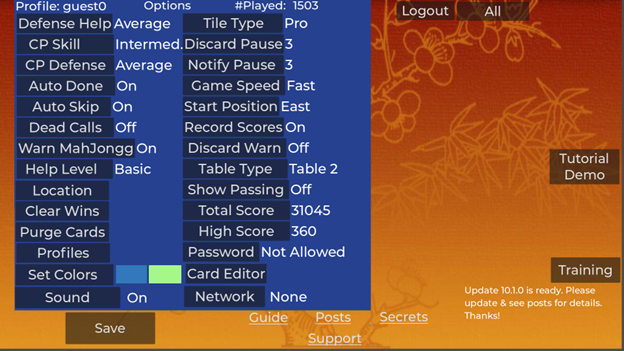
After modifying any options, press the “Save” button to close the options window and save any changes. These options are a stored profile specific to a device. All stored profiles can be viewed or modified using the “Profiles” button. Additional profiles can be added and saved. The last active profile will be the active profile the next time you start. Profiles are specific to a particular device and browser type. If you run the game on a different device or browser, profile changes will need to be re-entered. These options are for a primary player that will be playing locally on the device. The primary player position is always at the bottom of the display.
Two primary options are directly on the Setup page. These options are:
Skill Level: Changing the skill level resets all parameters to the default for that level. Default settings for higher skill levels are faster and allow fewer mistakes. There are 3 skill levels: Beginner, Intermediate, and Pro. Higher skill levels have fewer help options available by default. To reset to the default skill level values without deleting the profile, change to a different skill level and then back to the desired skill level.
and
Card Type: The available Mah Jongg cards that define winning hands are selected here. Any cards you have entered, the Basic1, Basic2, Interm1, JL2024, and the JL2025 cards are selectable here.
The rest of the setup options are considered “Advanced Setup:”
Defense Help: Defense help options give information about which tiles are most likely to be needed by the other players. Defense prevents another player from calling Mah Jongg and prevents them from calling a tile you discard. The defense help options are “None,” “Min,” “Average,” and “Max.”
CP (Computer) Skill: This sets computer player’s artificial intelligence level. Higher skill levels are harder to beat.
CP Defense: This sets the defense level played by the computer players. The options are: None, Min, Avg, and Max. Max means the computer players play the most aggressive defense and None means they don’t play any defense.
Auto Done: Setting “Auto Done” to “On” ends the players turn as soon as the required number of tiles are selected. If set to “Off,” the player can change the selection(s) until the done button is pressed. The game is faster if “Done” does not need to be pressed after each selection. However, if using “Auto Done,” be careful when manually moving a tile. Hold down the mouse button (or touch screen) until after it is moved or it will be selected and automatically discarded. Also, make sure to move the tile far enough horizontally, but keeping it approximately in line with the other tiles vertically. Not moving the tile far enough or moving it too far vertically selects it (and discards with Auto Done set). On touch screens you need to select the tile on the top half of the tile and should move it using the bottom half.
Auto Skip: The purpose of “Auto Skip” is to speed up the game when you have two or more jokers. Each discarded tile can be called along with 2 jokers to make a set of 3. With two or more jokers, since every discarded tile can be called, the game delays after each discard to allow pressing “Hold,” or “Call.” To avoid this, turn Auto Skip on to skip discarded tiles that are not needed in the goal hand. If a goal hand has not been identified, the app tries to guess what hands you might be making. It will automatically skip if you have at least 2 jokers and the tile is not needed for any hand with odds within 25% of the top-odds hand. If you are making a more difficult hand, then you need to turn “Auto Skip” off using the Menu (Toggle Auto Skip). If you like keeping “Hint” on, you will probably want “Auto Skip” on. If you are making a hand that is not listed in the “Best Hands”, you should turn Auto Skip off.
Dead Calls: If this option is set on, the computer players can call your hand dead if the computer defense level is set above “None.”
Warn MahJongg: If “Warn MahJongg” is “On,” the app warns if you can call a tile for Mah Jongg. A green “MahJongg” button will pop up if you can call a tile for Mah Jongg. If “Warn Mah Jongg” is “Off,” then you will see a Mah Jongg button every time you have 14 tiles or can call a tile and you will need to manually know you have Mah Jongg and press the button to call it.
Help Level: The help level determines the available data on how to play and the recommended hands. The help levels are shown below with automated aids that are enabled at each level. The default Help Level for skill level Beginner is “All,” Intermediate is “Basic,” and Pro is “None.” The default help levels can be changed during setup. If defense help is enabled, the defensive help amount is controlled by the Defense Help setting.
| Help Level | Hint | Best Hands | Best Groups | Tile Ranks | Tile Status | Defense |
| None | No | No | No | No | No | No |
| Basic | No | Yes | Yes | No | No | Yes |
| All | Yes | Yes | Yes | Yes | Yes | Yes |
Location: Lets you change the location shown for you from the default USA value.
Clear Wins: Deletes all previous wins recorded.
Purge Cards: This button removes all temporary card files that have been saved. Purging saved cards may be necessary if an app upgrade modifies the card format. Any removed temporary cards are automatically regenerated with the latest format. The stored temporary card formats help make the app startup faster.
Profiles: Pops up a window that can be used to modify, add, or delete profiles of game parameters. If more than one person uses the same device to play, each person can save their own profile.
Set Colors: This option lets you change the background color of the racks. There are 2 colors, one for when it is the rack’s player’s turn, and one for when it is someone else’s turn. You can also change the rack text from white to black if your color choice needs to be either dark or light.
Sound: Pressing the “Sound” button pops up a menu that controls the game sound. The tile discarded, game phase, and notifications are played during the game when the Sound setting is on. Voices can be enabled separately from sound effects. Sound can be muted and unmuted during the game. An additional delay (about 2 seconds) is added when the sound is on to give enough time for the discarded tile names to be voiced; so disabling (muting) the sound can speed the game.
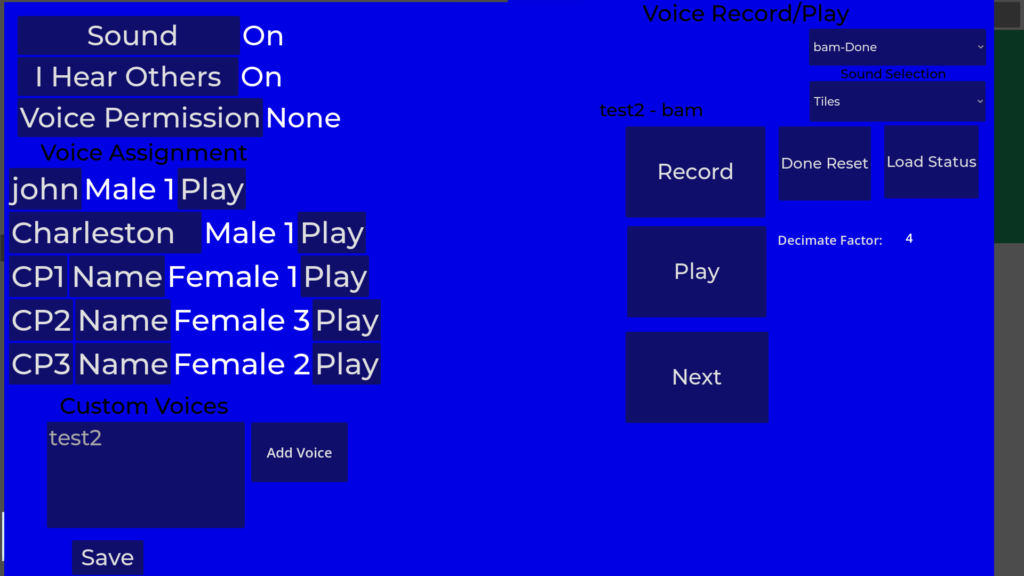
The two buttons below the “Sound” button enable/disable the sound when playing a multiplayer game over the internet. If “I Hear Others” is on, you can receive and hear other player’s custom voices. “Voice Permission” enables others to receive and hear a custom voice that you record. Voice permission can be “None,” “Restricted,” or “Public.” Restricted means that other players can only use your voice for you. Public permission means other players can also use your voice for computer players.
Below the top 3 control buttons are five rows that control voice assignments. You can assign different voices to each player and to the Charleston voice. Change CP names by selecting the current CP name. Either a standard or custom voice can be assigned to each player and the Charleston voice. The app includes 5 standard voices, 4 female and 1 male.
Note: Apple devices are not currently compatible with JLMahJongg’s voice recording feature. Up to four custom voices can be added using the bottom left and the right-side display elements. To enter a custom voice: press “Add Voice,” enter a voice name. You can then select record on the right side and say the word(s) it shows to record. You have about 1.5 to 3 seconds to record the proper word(s). Start saying the words as soon as you see the red record dot go on. You can play back the recording by pressing play. When done recording a word, press “Next” to go to the next word to record. There are two sets of words: 1) Tiles, and 2) Charleson passes. Only custom Tiles voices can be exchanged over the internet (can’t exchange standard Tile voices or Charleston voices). The Charleston voice needs to be one of the standard voices. You are not allowed to use someone else’s custom voice as your voice (top assignment).
If you record a custom voice, you may want to edit the sound files to make them as short as possible (no extra time with no sound) and adjust the volume. A good free app to do this is Audacity. To edit a sound file in Audacity: open the file, select a segment you want to edit out and select “Edit>Delete.” Next press “Control A” to select the entire clip. Select Effect>Volume and Compression>Amplify and then apply the default amplification that makes the largest sample 0 dB (1). Use File>Export to save the modified clip. Make sure the output format is .wav, mono, signed 16-bit PCM. If you use the default 4x decimation, the sample rate should be about 11kHz.
Voice File Transfers: After a custom voice file has been created, it can be used on your device and/or transferred to other players’ devices so they can hear your voice. Voice files for a particular player only need to be transferred once and are stored for future games unless they are overwritten by an alternate player’s voice in a future game.
Voice files are transferred as needed for a particular game and all files transfer via the host device (acts as a voice server). Voice file transfers happened automatically when players connect to a host and are shown on the lower left of the lobby display. The game can’t start until all the voice files are transferred. Voice file transfer can take a while to transfer the relatively-large voice files. The voice file size can be adjusted by setting the decimation factor when recording. A decimation factor of 4 means that only every 4th voice sample is used, decreasing the file size by a factor of 4 compared with using all samples. There is a tradeoff between file size and voice quality. The default decimation factor of 4 gives a good tradeoff between size and quality. A decimation factor of 4 results in each voice file being about 25 Kbytes. There are 25 files per custom voice set, one file for each word used. The voice data is compressed before transferring.
Tile Type: Multiple tile designs can be available. The app is distributed with two tile designs, standard and Pro. Pro is our custom tile set. Additional tile designs can be added.
Discard Pause: The Discard Pause is the number of seconds delayed after each player discards before the next player draws a tile. This determines the time available for a player to press the hold or call buttons (if not automatically held).
Notify Pause: “Notify Pause” is the delay in seconds after displaying messages about players stealing jokers, calling tiles, and winning tiles. If this time is short, it will be difficult to see these messages, but the game will be faster.
Game Speed: The “Game Speed” setting controls the overall delay between player turns. You can also speed the game by muting the voice.
Start Position: This setting is the initial start position (East, South, West, or North) of the primary player. This is the table “wind” position of the primary player who is always at display bottom. For multiplayer games, the host can select his position and the other players’ positions are assigned based on when they join. East starts the draw and discard phase and play proceeds counter-clockwise around the table. By default, the primary player is East. Do not confuse the position wind names with wind tiles. Player positions and wind tiles are separate and have no relationship, even though they are both winds.
Record Scores: This is either: “On” or “Off.” If “Off,” your score is not accumulated or considered for the game “Records” scoreboard. When “On,” you lose 50 points every time you quit or restart in the middle of a game. This is to prevent restarting over and over again until you have a good starting hand, artificially building up your score and skill level.
Discard Warn: This option configures warnings about tiles selected for discard. Options are: Off, Defense, Offense, and All. The Defense discard warnings highlight the tile selected for discard in yellow or red if the tile is considered likely to be used by an opponent based on what tiles they are showing and what has been discarded. The Offense warnings highlight in dark green a tile selected for discard that is currently used in the “Best” hand. When the warning is enabled, the tiles are not automatically discarded, but can be discarded by pressing the “Done” button. The “All” option enables both offensive and defensive discard warnings. Offensive warnings can help prevent accidentally discarding tiles you need when “Auto Done” is enabled.
Table Type: Mah Jongg is played on a table. There are 3 display table types in JLMahJongg: Table Type “Table 1”, Table Type “Table 2”, and Table Type “Demo.” The default table type depends on the chosen skill and device type. Table Type “Demo” is primarily used for demonstration, debugging, guests, or predicting a winner. Table Type “Table 2” is the beginner default unless on an iPad or iPhone, then Table Type “Table 1” is the default. Table Type “Table 1” has less support for game help and has larger tiles. Table Type “Table 1” is optimized for an iPad display. Other than tile size, the main difference between tables is that Table Type “Table 1” has control buttons in the middle and Table Type “Table 2” has control buttons at the bottom and side. You can choose any of the 3 tables to play.
Show Passing: If using Table Type “Table 1”, setting “Show Passing” to “On” lets you see the Charleston passing details. When set to “Off,” the same tiles are passed, but you only see the result.
Total Score: The game keeps track of the accumulated total score of any primary player across all past games since being reset. This option enables resetting the total score to zero and shows the current total score. Note that total score will not be accumulated when in Demo mode, if the network is disabled, or if you use automated help above the default for your skill level setting. If you use extra help above your level, your total score won’t increase, but will decrease if you lose. This is to prevent you from getting addicted to using help.
High Score: This shows the highest score of any single game since the last time high score was reset. The score in a game depends on: which hand is made, if the player draws the last tile for Mah Jongg themselves, and if the final hand is jokerless. The High Score can be zeroed with this button.
Password: Users can set a password to prevent someone else from logging in to the game and playing as you. The game administrator controls the password options available. Password protection is not allowed on the shared guest accounts.
Card Editor: This button opens the popup card editor. The card editor lets you enter or modify a custom card to use. Custom and non-NMJL card can be viewed from the “Menu/View Card” selection during a game.
Custom Tiles: If enabled, this button pops up a directory/folder selection window (see example below) that can add custom tiles that you design yourself to the “Tile Type” selection options. If you select a folder that has the 44 different required tile image files, these files are uploaded to the app and made available to (only) you as a “Custom” option under “Tile Type.” The format for the tile image file is .png. The file names need to be: 1bam.png to 9bam.png, 1crak.png to 9crak.png, 1dot.png to 9dot.png, green.png, red.png, white.png, north.png, east.png, west.png, south.png, flower1.png to flower8.png, joker.png, and blank.png (tile back). The image resolution needs to be 101 H x 135 V. See here for suggestions on how to generate custom tiles.

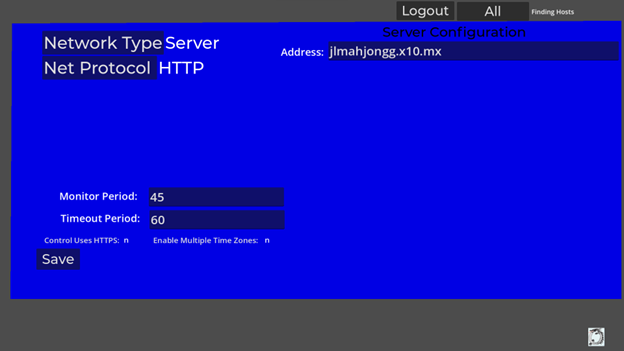
Network: Pops up a display to configure setup details about how multiple real players can play over the internet. The top-level network setting is on the main setup page. Only detailed settings are in the Network menu. When the network is disabled (Off), a single real player plays against three computer players. There are 2 primary network options: Direct (also called Player-to-player or P2P), and Relay. There is an “Auto” network mode that tries Direct first and falls back to Relay if Direct is not available. See the Network Configuration page for network setup details.