Multiplayer means more than one real primary player can play against each other over the internet. Up to 4 real players can play together. If less than 4 real players are available, computer players play the other positions.
The multiplayer game version cannot run in a browser. To play with multiple real players, each player must download and run the app version that is native to their type of device or operating system (OS) being used. The OS types supported are: Windows, OSX (macos), iOS (iPad and iPhone), Linux, and Android. The multiplayer app can also play with one real player and 3 computer players. The multiplayer version requires access to a configured JLMahJongg server and internet access unless you are playing a single-player game. Our default S/HTTP public JLMahJongg server is jlbeachhouse.com.
Note that all players in a game need to use the same release version of the app and use the same server. The app does not currently test for this, but may in the future. Use of different versions has been known to cause errors.
App Download: You can download the Windows and Linux multiplayer apps from the JLMahJongg web site. We are working on making JLMahJongg available in the Microsoft Store. For Apple devices, you can install from the Apple App Store. If I can physically connect to your device, I can alternatively upload the app to your device. Google/Android devices can download from the Google Play Store. Search for JLMahJongg to find the free JLMahJongg App on these stores. The support web page is: https://jlmahjongg.com/
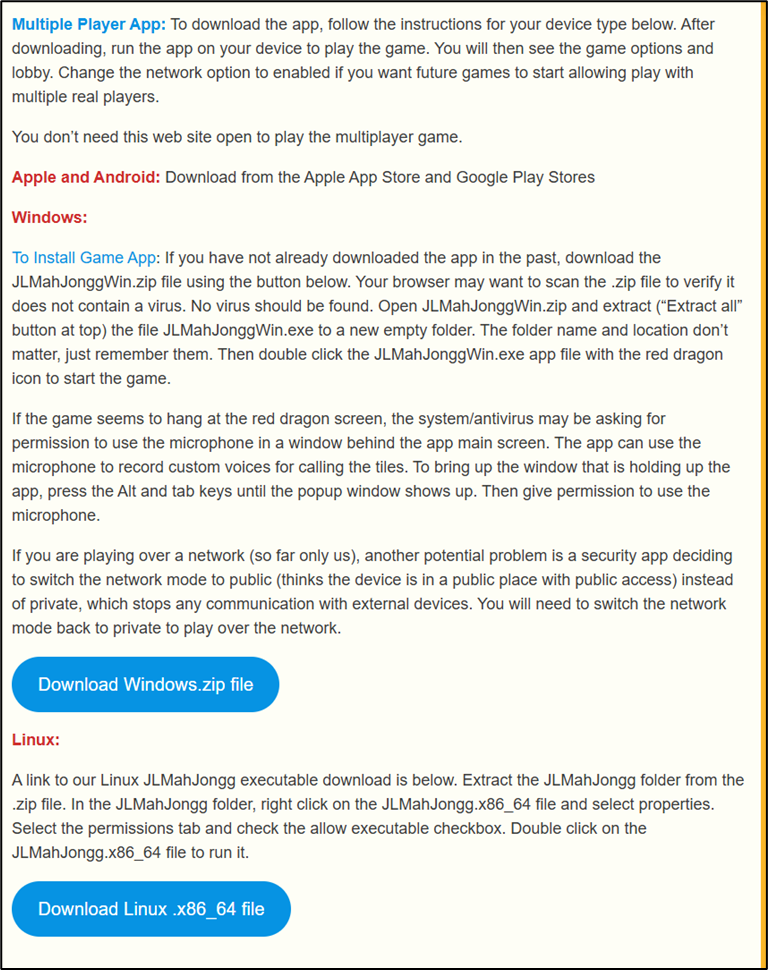
Multiplayer Startup: After obtaining the app, open or run it and you will be taken to a page to select login type, Guest or Dedicated. See here for a description of the initial start sequence.
Each real player in a multiplayer game must enable a “Network” option. If a network option is not enabled, only a single real player can play at that device.
The Account Name, Profile Name, and skill level are shown in the lobby for each user. When playing the game, the Account and Profile Names are used to identify players. Guest accounts show the profile name of any online “guest” or the last guest that was online. All players in a game using a “Guest” account must be using different guest accounts. The lobby’s right column is each user’s status. The status is one of the following:
- Inactive – Has not played recently (within the last month)
- Offline – User is offline
- Online – User is online
- Hosting – User is hosting a game
- Connected – User has connected with a host, but has not joined a game
- Joined – User has joined a game
- Busy – Host that is busy
- Playing – User is playing a game
- Observer – User just observing and possibly betting
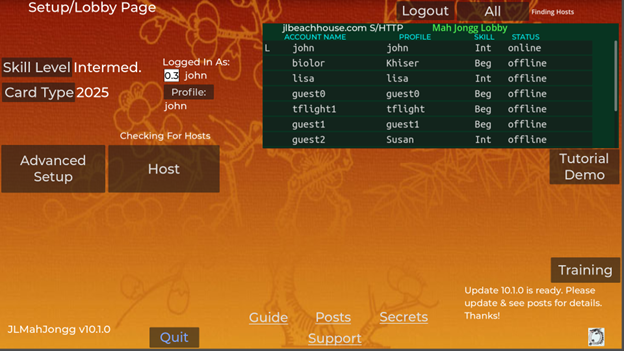
Each multiplayer game needs a single host. The app automatically searches for available hosts. It displays “Finding Hosts” at the upper right. This can take up to several minutes, depending on web server availability.
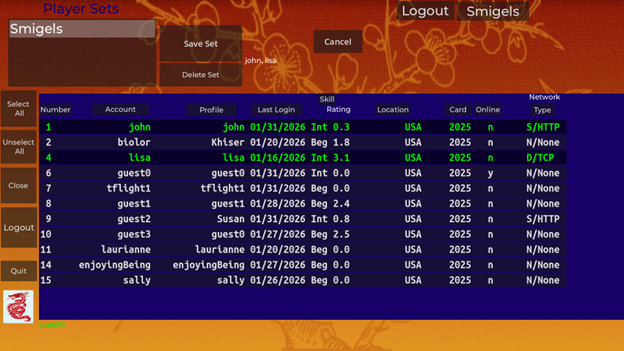
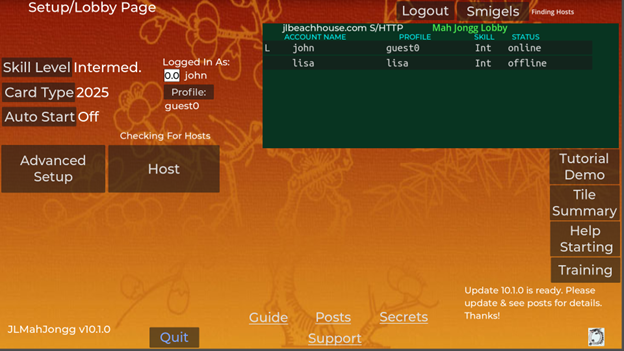
The app needs to search for hosts before letting you host. You can limit how long this takes by limiting the users searched. Press the “All” button near the top right in Figure C9 to limit the users searched. An example is shown in Figure C10. To enter a subset (Set) of users to search: first select the users, press “Save Set,” and enter a set name. In the Figure C10 example, John and Lisa were selected and saved as the set named “Smigels.” The lobby will then reflect this change, as shown in Figure C11. If you are the host, make sure you include all players you may want to play with in the selected set. Only players in the selected set will be able to connect with you. If you are a player finding a host, the host is only found if they are in your selected set.
The app searches all users in the lobby for hosts. When a host is found, a “Hosted Games” window below the lobby shows any hosts found. You can either host a game yourself by pressing the host button (only one host per game), or connect with a host that has been found.
If you host a game by pressing the “Host” button, “Hosted Games” and “Game Players” windows will be shown as in Figure C12. This example is on the host’s device. Each hosted game row/button lists the host username, skill level, status, and the current number of game players. If only 1 player, then only the host has joined the game. The players currently in the host’s game are shown underneath the Hosted Games in the “Game Players” window. The host’s username in this example is john. An “L” for “Logged in” is shown to the left of your lobby listing when logged in.
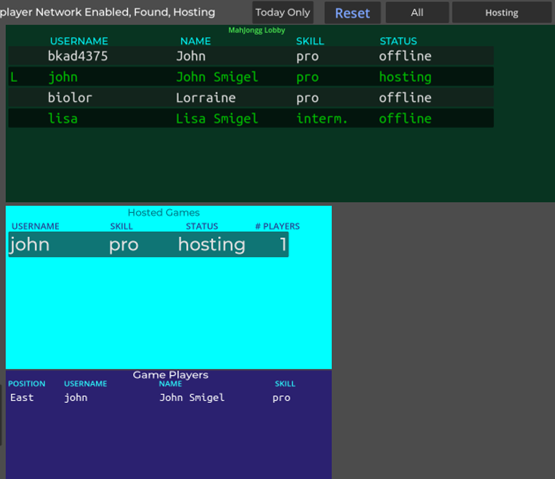
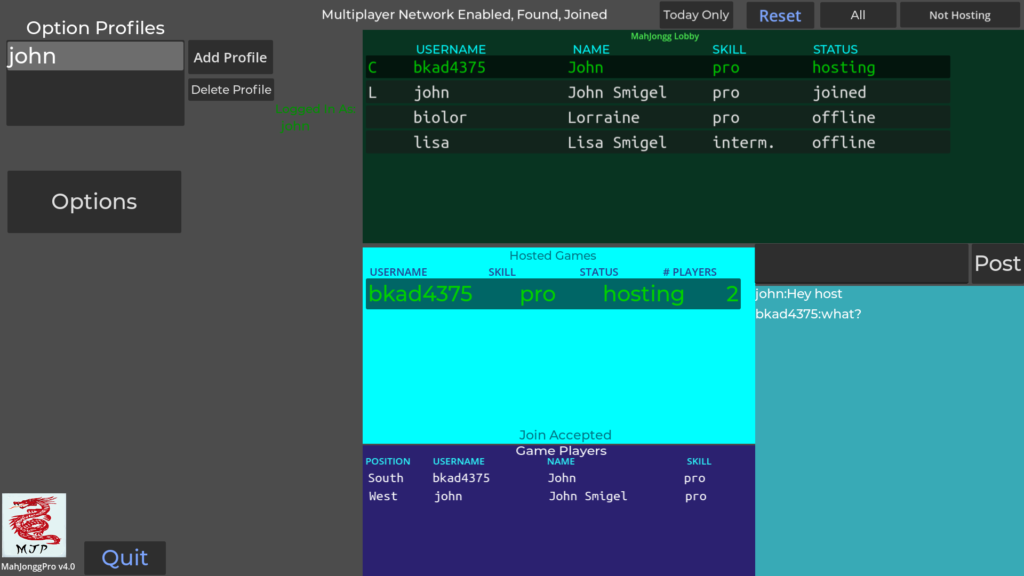
An example “Hosted Games” display when the app finds a host on a different device is shown in Figure C13. In this example, player “john” has found a host with username “bkad4375.”
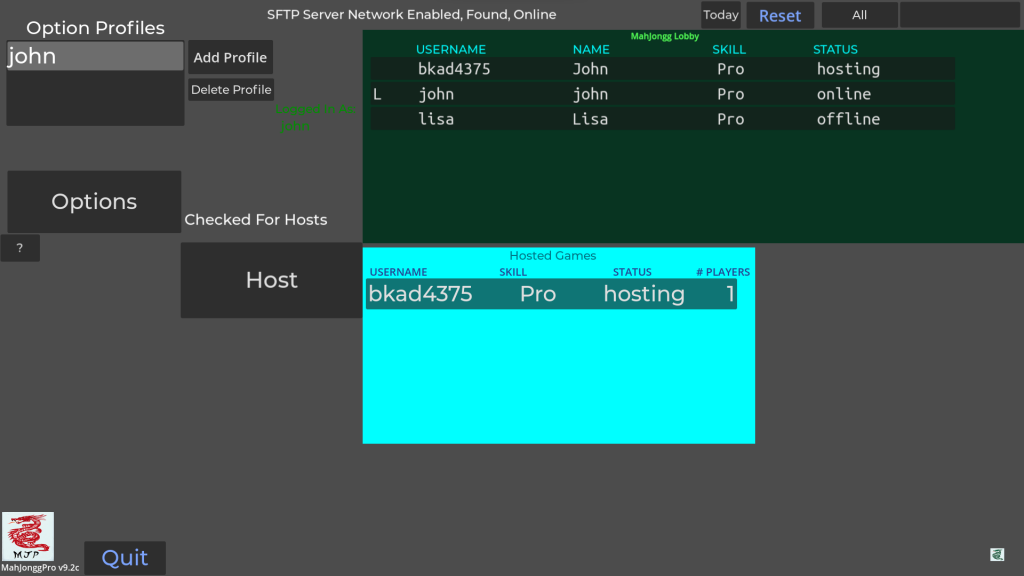
Each “Hosted Games” row is also a button that can be selected. When a hosted game is selected, a connection is made with the host and allows chatting with them. After a host is selected, the hosted game entry turns green (selected) and two more windows open, “Game Players” and a “Chat Window.” The “Game Players” window shows all the current players. An example is shown in Figure C14. Chat window use is straight forward and is not necessary to join a game. The “Post” button must be pressed to send the chat message. Hitting enter will just add another line to the message. The message will go to all users in your lobby that are connected to the same host. A “C” for Connected is shown to the left of a connected host. If there is a game position available, “Join as Player” and “Join as Guest” buttons are shown to potential new players as in Figure C14.

Figures C15 and C16 show host display examples when a new player or guest requests to join. A bell will ring when someone is requesting to join.
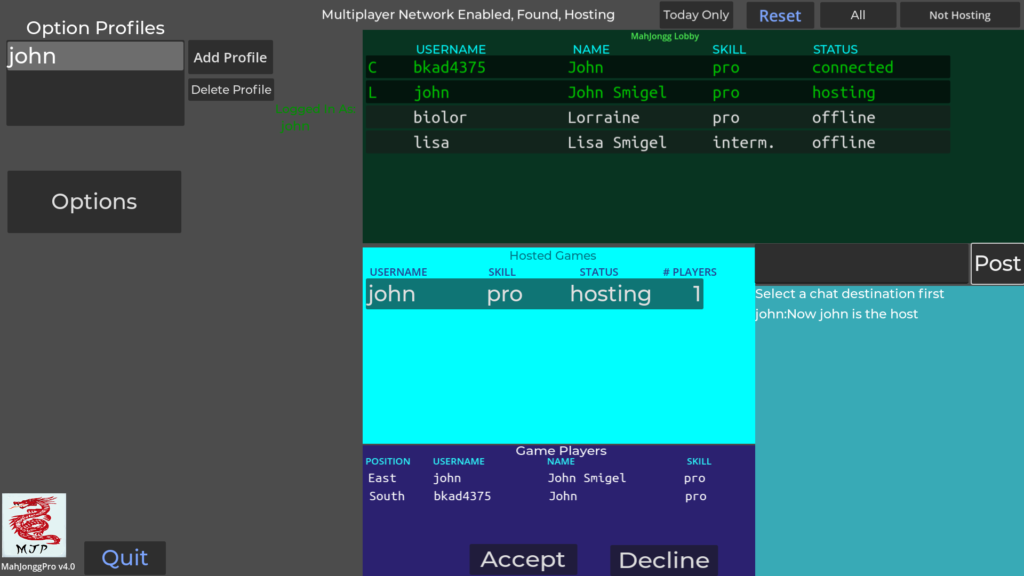
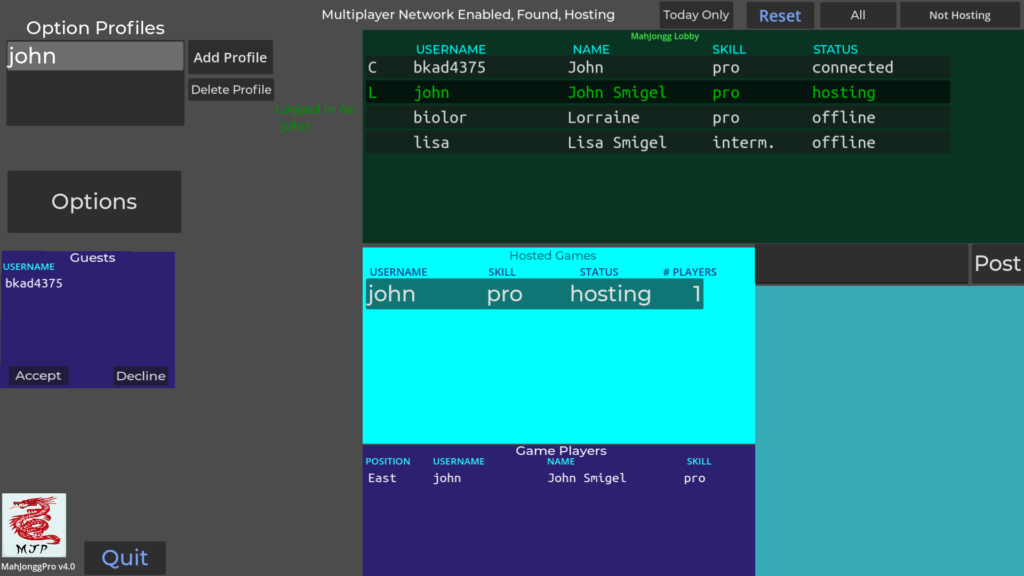
Pressing “Join as Player” or “Join as Guest” brings up a join request in the Host’s “Hosted Games” or “Guest” window where he/she can accept or decline the request. If accepted, the player is either added as a guest or added to the “Game Players” windows of all players. A non-host example is shown in Figure C17. A non-host player is called client player, client, or just player.
After joining a host’s game, some options will be limited to those selected by the host. The options that can only be selected by the host are CP Skill, CP Defense, AutoPlay, Start Position, and Card Type. These selections are temporarily disabled for clients during the game.
The host decides when to start the game. A host has a “Start New Game” button. Whichever players have joined the game when “Start New Game” is pressed, if any, will play with the host. If there are less than 4 real players, computer players play the other positions. The rest of the displays and functionality are the same as for a single player game. Note that the host can start a single-player game if there are no other players requesting to join.
Multiplayer Game Ending: At the end of a multiplayer game, the host has the option to quit or to rotate player positions and play another game. If positions are rotated, they are rotated to the right (counterclockwise, previous South becomes new East).
At the end of each game, a score summary for each game played so far can be shown by pressing the “Scores” button. An example game score summary is shown in Figure C18. In my (john’s) defense, I was having one of the computer players play for me.
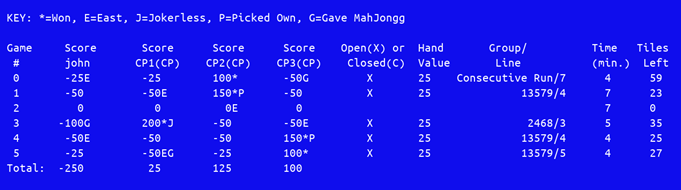
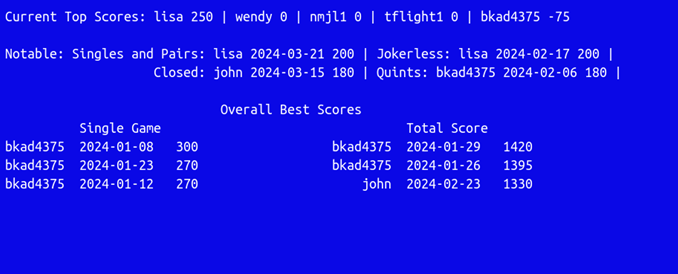
Figure C19 shows a High and Notable Scores summary example located at the bottom of the Scores Summary display. This shows the players currently with the five highest total scores and the last players getting Mah Jongg as jokerless, closed, quints, or singles and pairs. Also shown are the overall best 3 single game scores and the best 3 total scores ever achieved.
Game Players Quitting: If a player quits or is disconnected, the game continues with a computer player replacing the missing player. If a host quits or is disconnected during a game, all players still playing are converted to single-player games to finish the game.